When Your PC Runs Hot and Slow: Understanding CPU Thermal Throttling and How to Fix It
Your computer feels slower than it used to. Applications take longer to respond, video calls stutter, and tasks that once felt instant now seem to drag. You have checked for malware, you have not installed anything unusual, and yet the sluggishness persists. In many cases, the culprit is not software — it is heat.
Thermal throttling is a built-in safety mechanism found in virtually every modern processor. When a CPU reaches temperatures that could cause permanent damage, it automatically reduces its clock speed to generate less heat. The result is a processor that is technically functioning but performing well below its rated specifications. For most users, this happens invisibly, with no warning message and no obvious explanation for why their machine suddenly feels underpowered.
Understanding this process — and the conditions that trigger it — is essential for anyone who wants to maintain a computer that performs reliably over the long term.
What Causes a CPU to Overheat in the First Place
Heat is an unavoidable byproduct of processing work. Every CPU generates it, and every system is designed with a cooling solution intended to manage it. When that cooling solution becomes compromised, temperatures rise beyond acceptable thresholds.
The most common cause is dust accumulation. Over months and years of operation, fine particulate matter builds up inside a computer case, clogging heatsink fins, coating fan blades, and blocking the airflow pathways that cooling systems depend on. A heatsink packed with dust can lose a significant portion of its heat-dissipation capacity, forcing the processor to throttle even under moderate workloads.
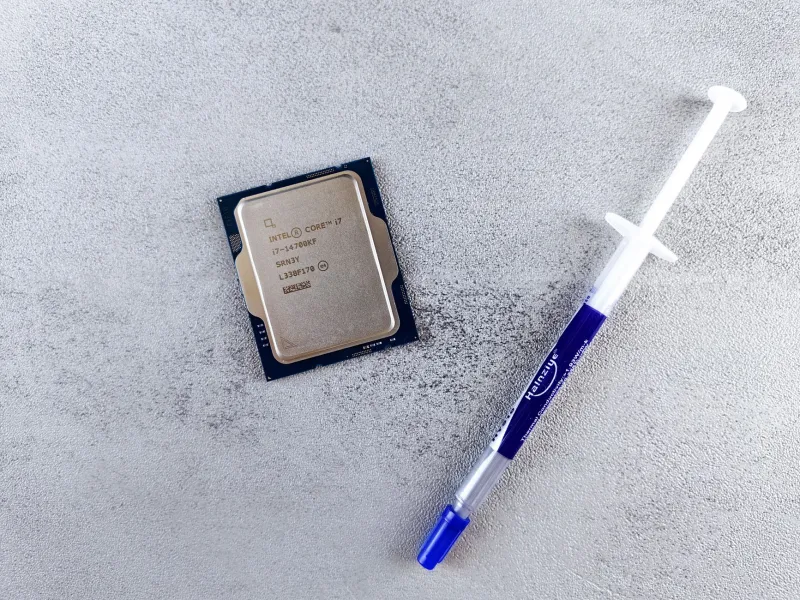
Thermal paste degradation is another frequent contributor. The compound applied between a CPU and its heatsink serves a critical function: it fills microscopic surface imperfections to ensure efficient heat transfer. Over time — typically three to five years under normal use, though this varies — thermal paste dries out, cracks, or separates. When that happens, an air gap forms between the processor and the cooler, and temperatures can spike dramatically even in a clean system.
Fan failures round out the primary causes. Cooling fans contain bearings that wear out. A fan running at reduced speed, or one that has stopped entirely, can no longer move sufficient air across the heatsink. In many cases, a failing fan will produce a grinding or rattling noise before it fails completely — a warning sign that is easy to overlook in a busy office environment.
How to Diagnose Thermal Throttling on Your System
Before any repair or maintenance work begins, it is worth confirming that thermal throttling is actually occurring. Several free tools make this straightforward.
HWMonitor and Core Temp are widely used utilities for Windows that display real-time CPU temperature readings alongside maximum values recorded during a session. If your processor is regularly reaching temperatures above 90 degrees Celsius under standard workloads, thermal throttling is almost certainly active. Most consumer processors are designed to throttle somewhere in the 95 to 105 degree Celsius range, depending on the manufacturer and model.
MSI Afterburner and HWiNFO64 offer more detailed logging capabilities, allowing you to record temperature and clock speed data simultaneously. If you notice your CPU clock speed dropping precisely when temperatures spike, you have confirmed the relationship between heat and performance loss.
For users on macOS, the Macs Fan Control application and Apple's built-in Activity Monitor provide temperature visibility, though Apple silicon systems manage thermal behavior somewhat differently than traditional x86 architectures.
Once you have established that overheating is the problem, the next question is what to do about it.
Professional Cleaning vs. DIY Maintenance: Knowing When to Call for Help
For a desktop system that has simply accumulated dust, a careful cleaning with compressed air is often sufficient. Directing short bursts of air through the case vents, across the heatsink fins, and over the fan blades — while keeping the fans from spinning freely, which can damage bearings — removes the buildup that restricts airflow. This is a task many users can handle themselves with reasonable confidence.
Laptop cleaning is considerably more involved. Most modern laptops require partial disassembly to access the cooling system, and the risk of damaging ribbon cables, retaining clips, or motherboard connectors is real for anyone unfamiliar with the process. If your laptop is running hot and a simple exterior cleaning has not resolved the issue, professional service is the more prudent path.
Thermal paste replacement is a job that rewards careful technique. Removing the old compound completely, applying the new material in the correct quantity, and reseating the cooler without introducing air gaps or uneven pressure all require attention to detail. For desktop users comfortable with hardware work, this is a manageable project. For laptops, where the CPU and heatsink assembly is often tightly integrated with other components, professional handling reduces the risk of a costly mistake.
At MEC Computer, we regularly service systems where thermal paste has not been replaced in five or more years. In many of those cases, a cleaning and repaste resolves the performance issues entirely — no hardware replacement required.
A Practical Maintenance Schedule to Stay Ahead of Heat Problems
The most effective approach to thermal management is preventive rather than reactive. Establishing a regular maintenance routine keeps cooling systems functioning properly and extends the useful life of your components.
Every six months: Inspect and clean the exterior vents of laptops and the intake and exhaust areas of desktop cases. This takes minutes and keeps debris from migrating deeper into the system.
Annually: Open desktop cases for a thorough internal cleaning. Check fan operation visually and listen for any unusual sounds during startup or under load. Review temperature readings with a monitoring tool to establish a baseline.
Every two to three years: Consider thermal paste replacement, particularly if temperatures have risen compared to earlier baseline readings or if the system is approaching the three-year mark since its last service. For business-critical machines or laptops used intensively, this interval may be shorter.
Immediately: If you hear grinding, rattling, or a fan running at unusually high speed persistently, do not delay. A failing fan that is not replaced can allow temperatures to reach levels that damage the processor, the motherboard, or both. Component damage of that nature is significantly more expensive to address than a fan replacement.
The Broader Cost of Ignoring Thermal Issues
Thermal problems are deceptive because they rarely announce themselves dramatically. A system that throttles under load does not crash — it simply underperforms. Users adapt, assuming the machine is aging, and eventually replace it when targeted maintenance could have restored full function.
Beyond performance, sustained high temperatures accelerate component wear across the entire system. Capacitors, storage drives, and memory modules all degrade faster under chronic heat exposure. A machine that runs cool consistently will, in most cases, outlast one that runs hot by a meaningful margin.
If your computer has been feeling sluggish and you have not had the cooling system serviced in the past two years, that is the logical first place to look. A professional diagnostic can confirm whether thermal throttling is occurring, identify the specific cause, and outline the repair options — often at a fraction of the cost of a replacement system.
Performance you have already paid for should not be quietly surrendered to a clogged heatsink or dried-out thermal compound. With the right maintenance, most systems can be restored to the responsiveness their hardware was designed to deliver.