Is Your PC Actually Slow, or Are You Just Being Sold Something? How to Tell the Difference

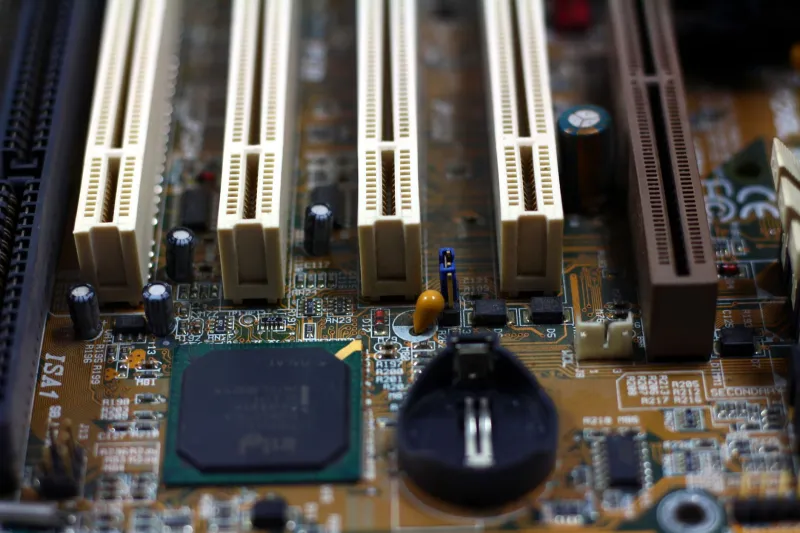
Photo by Photo by Andrey Matveev on Unsplash on Unsplash
Every few months, a new product launch arrives with promises of transformative performance gains. Benchmarks circulate online, forum threads buzz with excitement, and before long, a perfectly capable computer starts to feel inadequate — even when nothing about its actual performance has changed. This cycle is familiar to anyone who follows consumer technology closely, and it costs American PC owners billions of dollars each year in unnecessary upgrades.
The more useful question is not whether a new component is faster than what you currently own. It almost certainly is. The real question is whether your specific workload is being held back by that component in the first place.
What a Bottleneck Actually Means
In computing, a bottleneck is the single component that limits the overall performance of a system. Think of water flowing through a series of pipes of varying widths — no matter how wide the other pipes are, flow is constrained by the narrowest one. Upgrading any pipe other than that narrowest one produces no measurable improvement.
The same principle applies to your PC. If your processor is running at 95 percent utilization during a task while your graphics card idles at 30 percent, purchasing a faster GPU will accomplish nothing for that workload. Yet this is precisely the kind of mismatch that leads to expensive, ineffective upgrades.
Diagnosing Before You Spend
Windows includes built-in tools capable of revealing exactly where your system is straining. The Task Manager, accessible via Ctrl + Shift + Esc, provides a real-time view of CPU, memory, disk, and network utilization. For more granular data, the Resource Monitor offers per-process breakdowns that can isolate which applications are consuming the most resources.
For hardware-level diagnostics, free utilities such as HWiNFO64 and MSI Afterburner allow users to monitor component temperatures, clock speeds, and utilization percentages simultaneously. Running these tools during your typical workload — whether that is video editing, gaming, or running business applications — will reveal which component consistently hits its ceiling.
A few patterns to watch for:
- CPU at or above 90 percent consistently: Processing power is the likely constraint. This is common in tasks involving simulation, data processing, or running many applications simultaneously.
- RAM usage above 85 percent: The system may be relying on the page file, which uses slower drive storage as overflow memory. Adding RAM is often one of the most cost-effective upgrades available.
- GPU below 80 percent during gaming: Your graphics card is waiting on another component — usually the CPU — and upgrading the GPU will yield minimal improvement.
- Disk activity at 100 percent: If you are still running a mechanical hard drive, replacing it with a solid-state drive will likely produce the most dramatic real-world improvement of any upgrade you can make.
Cost-Benefit Realities for Common Upgrades
Not all upgrades are created equal in terms of return on investment. Here is a practical breakdown of the most common scenarios:
Adding RAM (8GB to 16GB or 16GB to 32GB): For most users, this represents the highest-value upgrade available. RAM is relatively inexpensive, installation is straightforward, and the performance difference in multitasking and memory-intensive applications is immediate and tangible.
Replacing a Hard Drive with an SSD: Boot times, application load times, and file transfer speeds improve dramatically. On older systems still running spinning drives, this single change can make a machine feel entirely different — often more so than a CPU or GPU upgrade would.
Upgrading a Graphics Card: Justified primarily for gaming, video rendering, or machine learning workloads. Before purchasing, verify that your CPU, power supply, and case airflow can support the new card. An underpowered system will prevent the GPU from performing at its rated capacity.
Replacing the CPU: This often requires a new motherboard and, potentially, new RAM as well, making it one of the more expensive upgrade paths. Unless the processor is definitively the bottleneck, the total cost frequently approaches that of a new system.
When a Full Replacement Makes More Sense
There is a threshold beyond which incremental upgrades become economically irrational. A system more than seven to eight years old may require multiple component replacements to achieve meaningful improvement, and compatibility constraints often limit which modern parts will function correctly.
If your diagnostic review reveals that the CPU, motherboard, and RAM all need replacement simultaneously, building or purchasing a new system is almost always the more sensible path. The labor involved in staged upgrades, combined with the risk of incompatibility, typically outweighs any short-term savings.
At MEC Computer, we frequently advise clients to think of their PC as a whole system rather than a collection of independent parts. A well-matched, mid-range configuration will outperform a high-end machine with mismatched components in nearly every real-world scenario.
A Practical Decision Framework
Before authorizing any upgrade purchase, work through the following steps:
- Identify the specific problem. "My computer is slow" is not a diagnosis. Determine which tasks are slow, and under what conditions.
- Run utilization monitoring during the problematic workload and record which components are at or near capacity.
- Research whether the upgrade addresses that specific component. If it does not, the upgrade will not solve the problem.
- Calculate total upgrade cost, including any dependent components, installation, and potential compatibility risks.
- Compare that figure against the cost of a new or refurbished system that meets your performance requirements.
The goal is not to avoid upgrades entirely — it is to ensure that every dollar spent produces a measurable, lasting improvement. With proper diagnostics and honest cost analysis, the right decision becomes considerably clearer.