Cable Clutter and Hidden Costs: Which Legacy Connectors to Keep and Which to Let Go
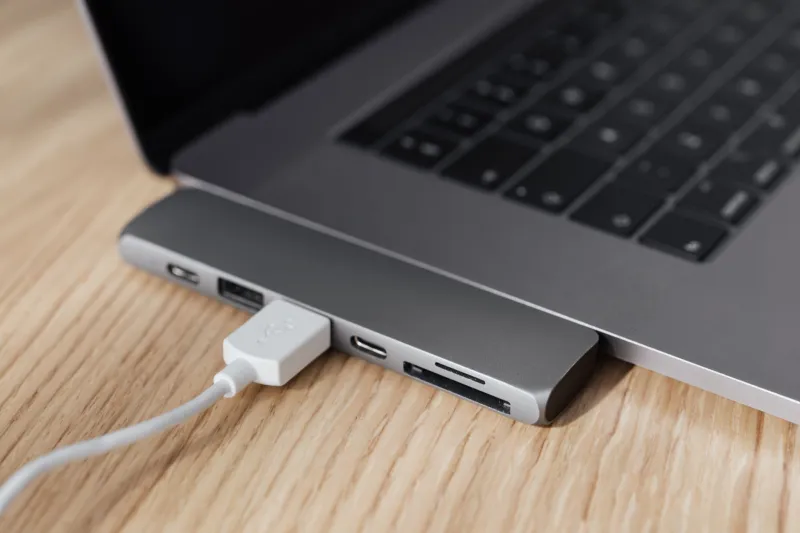
Most Americans have one. A junk drawer, a shoebox, or a tangled pile somewhere in the home office or server room—filled with cables accumulated over a decade or more of technology purchases. VGA adapters, USB-A hubs, aging Thunderbolt dongles, and coiled DisplayPort cords that may or may not fit anything currently in use. It feels wasteful to throw them out. But holding onto obsolete connectors out of habit or misplaced frugality comes with real costs that are easy to overlook.
At MEC Computer, we work with individuals and businesses every day who are unknowingly throttling their systems with outdated hardware connections. This guide is designed to help you take stock of what you have, understand what still holds value, and recognize when aging infrastructure is quietly costing you time and money.
Why Old Cables Are More Than a Nuisance
Connectors are not passive components. Every interface standard carries a specific bandwidth ceiling, power delivery specification, and signal quality threshold. When you pair a modern device with a legacy cable or port, the connection defaults to the lowest common denominator. That means a high-resolution monitor connected via an older DisplayPort 1.2 cable may not support the refresh rates your GPU is capable of delivering. A USB-A 2.0 hub daisy-chained into a workstation can create a data transfer bottleneck that slows file operations across the entire chain.
This is what IT professionals refer to as "tech debt"—the accumulated cost of deferring upgrades. It shows up not on an invoice, but in lost minutes, frustrated users, and hardware performing well below its potential.
The Connectors Worth Keeping (For Now)
USB-A 3.0 and 3.1 Despite the industry's gradual migration toward USB-C, USB-A remains prevalent in the US market. The majority of keyboards, mice, flash drives, and legacy peripherals still rely on Type-A connectors. USB-A 3.0 supports transfer speeds up to 5 Gbps, and 3.1 doubles that to 10 Gbps—both are entirely adequate for most day-to-day tasks. Keep these cables in rotation, but be sure you know which generation you have. USB-A 2.0 cables—identifiable by their black plastic inserts—are far more limited and worth phasing out of primary use.
DisplayPort 1.4 If you are running a 1440p or 4K display, DisplayPort 1.4 remains a capable standard. It supports up to 32.4 Gbps of bandwidth and is compatible with high refresh rate monitors at resolutions up to 8K with compression enabled. Unless you are pushing a multi-monitor 4K setup at 144Hz or higher, a DisplayPort 1.4 cable is not your bottleneck. Hold onto these.
HDMI 2.0 Similarly, HDMI 2.0 cables support 4K at 60Hz and remain compatible with a wide range of televisions, monitors, and projectors commonly found in US homes and offices. They are not future-proof indefinitely, but they are far from obsolete for standard professional and home use.
The Connectors That Are Costing You
Thunderbolt 2 Thunderbolt 2 was impressive when it launched, but it uses a Mini DisplayPort form factor that is incompatible with modern Thunderbolt 3 and 4 ports without an adapter. More importantly, its 20 Gbps bandwidth ceiling falls significantly short of what Thunderbolt 4 offers at 40 Gbps. If your workflow involves high-speed storage, video production, or eGPU enclosures, Thunderbolt 2 is a meaningful constraint. The adapters required to bridge the gap are often expensive and introduce latency.
VGA and DVI These analog and early digital standards have no place in a modern professional environment. VGA is an analog signal standard that cannot faithfully reproduce the output of today's GPUs at high resolutions. DVI, while digital in its Dual-Link form, maxes out at 2560×1600 and lacks audio support entirely. If your monitor or projector still requires one of these connections, that peripheral itself is the problem—not just the cable.
USB-A 2.0 Hubs and Cables As noted above, 2.0-generation USB infrastructure can create system-wide bottlenecks when integrated into modern setups. This is particularly relevant in office environments where USB hubs are used to connect multiple devices to a single workstation. A 2.0 hub limits every connected device to 480 Mbps shared bandwidth. Replacing it with a powered USB 3.0 or USB-C hub is a low-cost upgrade with immediate, measurable impact.
30-Pin and Micro-USB Cables For business environments managing device fleets, holding onto 30-pin Apple connectors or Micro-USB cables for modern device charging is an inefficiency. Nearly all current smartphones, tablets, and accessories have transitioned to USB-C or Lightning (and Apple itself is moving toward USB-C across its lineup). Standardizing your charging and data infrastructure around USB-C reduces confusion, simplifies procurement, and ensures faster charging compatibility.
The Real Calculus: When Does Upgrading Pay Off?
The decision to replace legacy cabling and peripheral connections should be evaluated against two factors: frequency of use and performance impact.
If a cable is used daily and connects a device central to your workflow, the cost of an upgrade is almost always justified. A $15 USB-C cable replacing a bottlenecked USB-A 2.0 connection on a primary workstation pays for itself quickly in recovered productivity. By contrast, a VGA cable kept in a drawer for the occasional projector in a conference room may be worth retaining until that projector is replaced—provided it is not being used in a context where display quality matters.
For businesses managing multiple workstations, this analysis scales considerably. A single outdated hub or connector on one machine may seem trivial, but multiply that inefficiency across ten or twenty endpoints and the cumulative impact on throughput and employee time becomes significant. This is precisely the kind of infrastructure review that a managed IT services provider can systematically address.
Disposing of Old Cables Responsibly
Once you have identified cables and connectors that no longer serve a purpose, disposal matters. Electronics—including cables with copper wiring and plastic insulation—should not go into standard household or office waste. Many municipalities across the US offer e-waste drop-off programs, and national retailers such as Best Buy operate recycling programs that accept cables and small electronics at no charge. Responsible disposal keeps hazardous materials out of landfills and, in some states, is required by law.
A Cleaner Setup Is a More Capable One
The cables in that drawer represent years of technology evolution—and some of them deserve to stay. But the ones that are quietly degrading your system's performance, forcing you to rely on adapters, or simply creating confusion in your workspace are worth addressing deliberately. Taking an hour to audit your connections, identify your current interface standards, and replace the weakest links is one of the more straightforward ways to extract more value from hardware you already own.
If you are unsure which connections are limiting your setup—or if you manage a business environment with aging infrastructure—the team at MEC Computer is available to assess your current configuration and recommend practical, cost-effective upgrades. Sometimes the answer is a $12 cable. Sometimes it points to something larger. Either way, knowing the difference is where the savings begin.